
Chapter 13 · 13.5
Incidents and maintenance
Is your website, email or another service not working as you're used to? Then check our status page first. There you can see straight away whether an incident or scheduled maintenance is known to us.
Opening the status page
On the website, choose Support in the menu, then Status. The dot in the menu already shows you whether everything is fine. You don't need to log in.
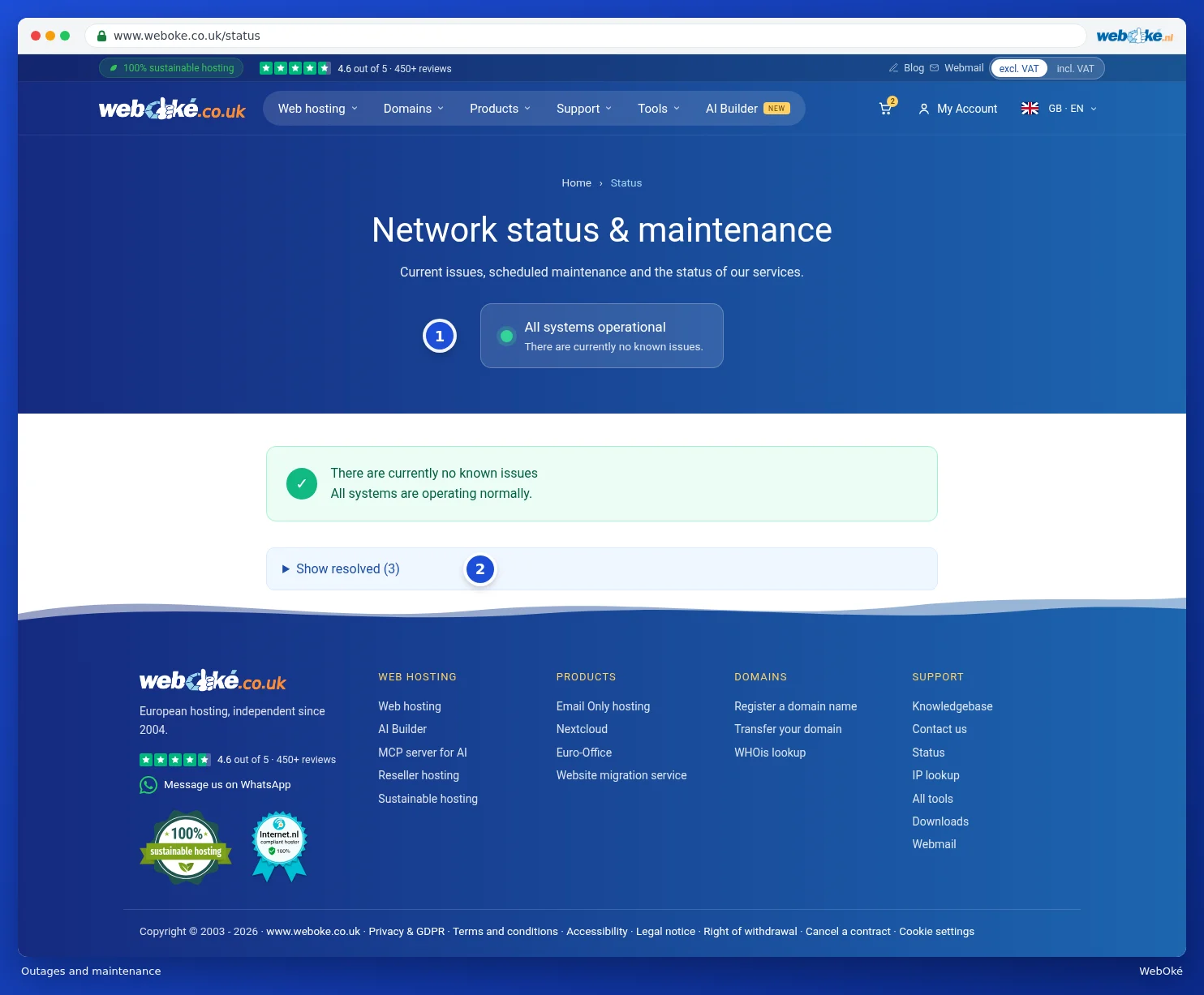
What do you see on the status page?
At the top is the overall status (1). It can show four things:
| Message | Meaning |
|---|---|
| All systems operational | There are no known incidents. |
| Degraded performance | One or more services may be slower or limited. |
| Active incident | There's an incident. We're working on a solution and posting updates on the page. |
| Scheduled maintenance | Maintenance is scheduled. The details are shown below. |
Below that you'll find Current issues and Scheduled maintenance. For each message, you can see what it's about (for example a specific server or all servers), when it started and a timeline with all updates, the latest one at the top. This way you can follow exactly what's going on.
Resolved messages
With Show resolved (2) you can see the messages from the past 90 days that have already been resolved, including their full timeline.

Message in My WebOké
If there's an ongoing incident, you'll also see a message about it on the My WebOké dashboard. This way you'll know straight away after logging in whether something's going on.
Tip: no message shown and the problem persists? Then check whether your IP address might be blocked (Am I blocked? Release your own IP address) or ask your question to the AI assistant or our support team (Submitting a ticket).