
Chapter 5 · 5.10
Domain contacts and changing the owner
Every domain has a holder, also called the registrant or owner. This is the person or organisation that owns the domain name, as registered with the registry. There is also an administrator (admin contact). WebOké manages the administrative and technical contacts for you.
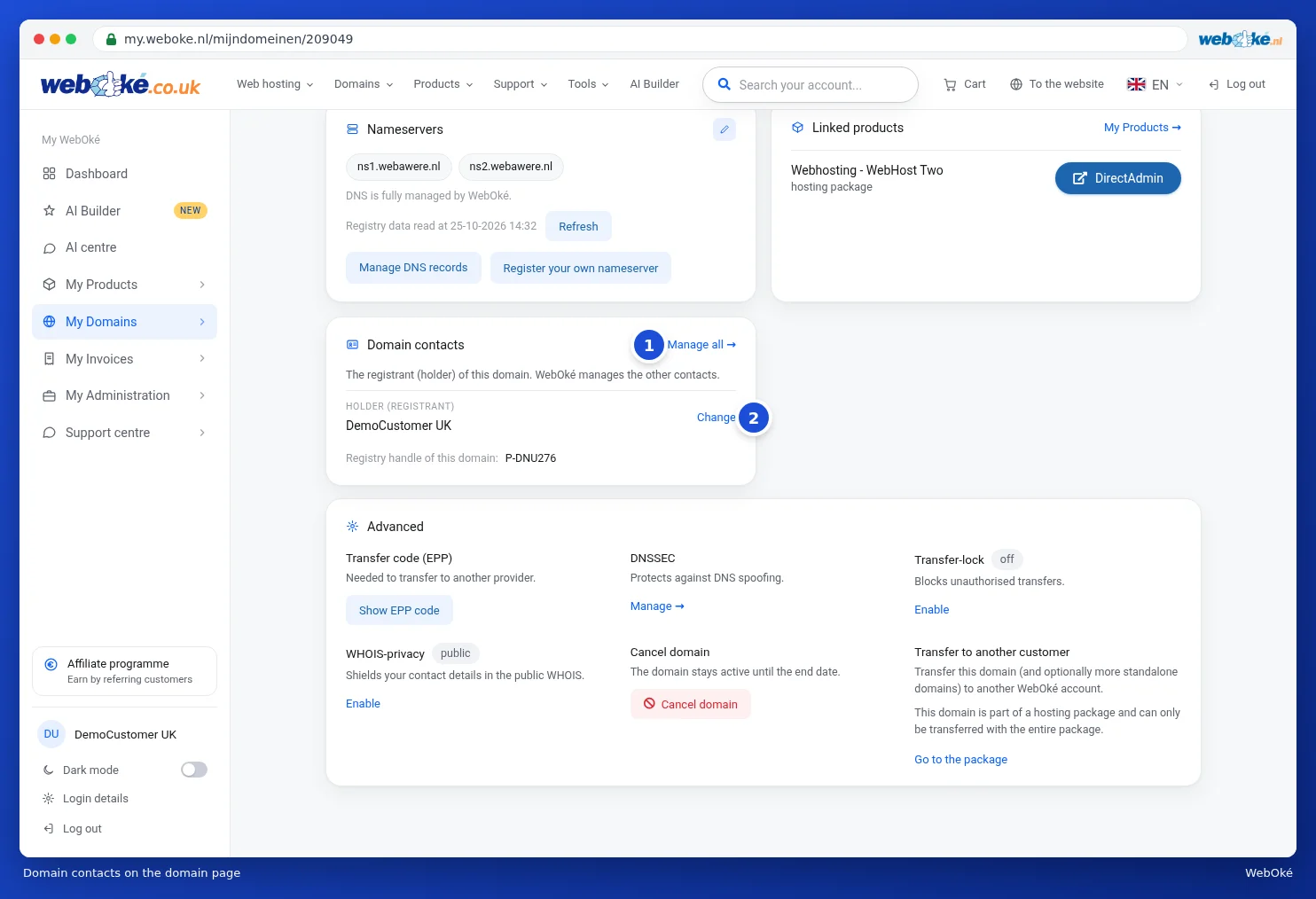
On the domain page, you can see the holder in the Domain contacts card. Use Change (2) to update it. Use Manage all (1) to go to the Contacts tab.
The Contacts tab
Go to My Domains, the Contacts tab, and select the domain at the top.
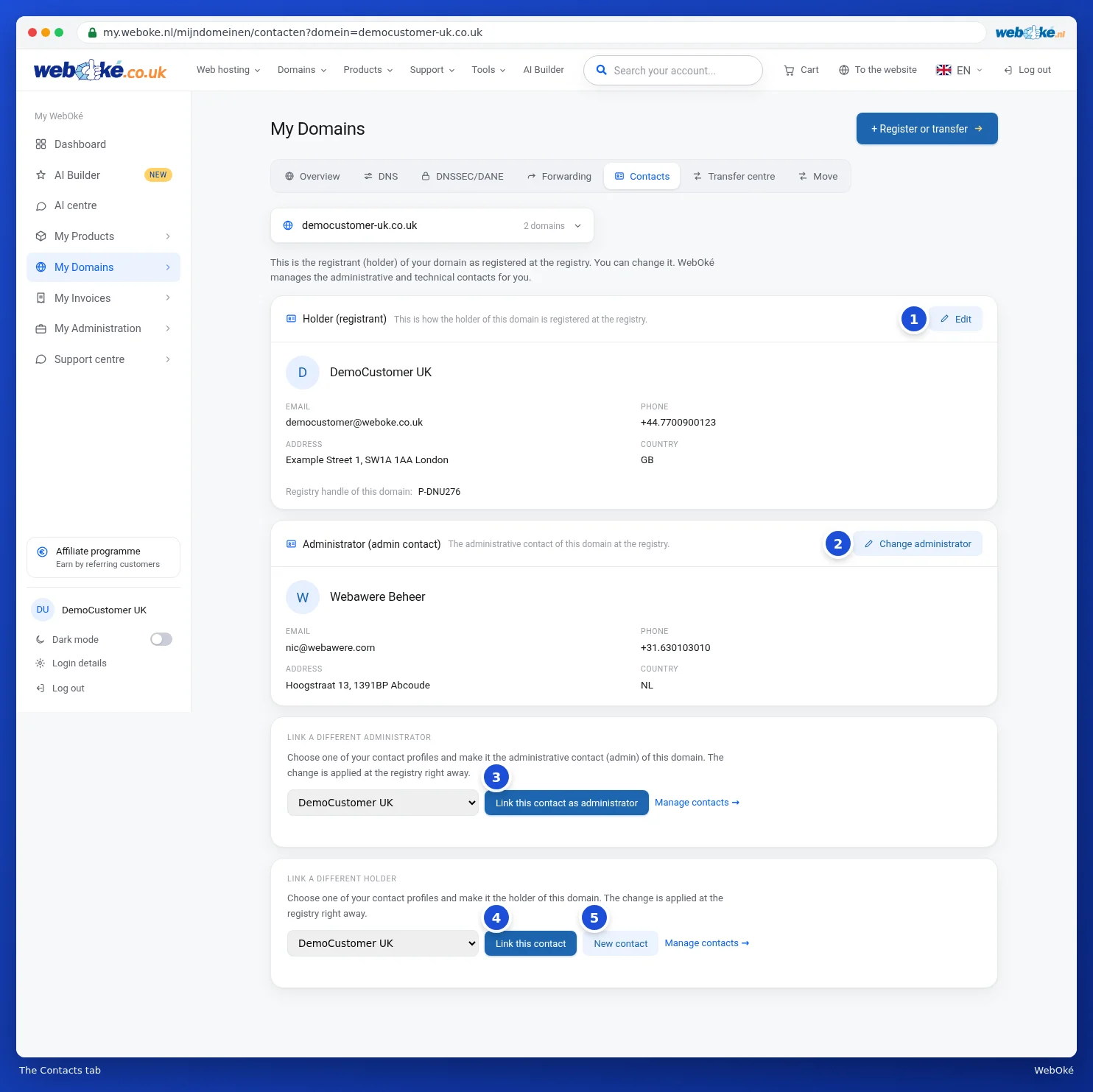
- Holder (registrant): the holder's details as registered with the registry, with the registry handle for this domain at the bottom. Use Edit (1) to change the details.
- Administrator (admin contact): the administrative contact at the registry. Use Change administrator (2) to update it.
- Link a different administrator: choose one of your contact profiles and click Link this contact as administrator (3).
- Link a different holder: choose one of your contact profiles and click Link this contact (4). Use New contact (5) to create a new profile first.
Please note: linking a different holder or changing the holder's details is applied directly at the registry. This means you are transferring the domain name to that person or organisation. Only do this if that is really what you intend.
Changing the holder's details
- Next to Holder (registrant), click Edit. The Change owner window opens.
- Use Use my account details to fill in the form with your account details. You can also fill in the fields yourself.
- Check the name, email address, phone number and address. Fields marked with an asterisk are required.
- Click Save, or Cancel to leave everything unchanged.

Use an email address that you actually read. For many extensions the holder has to confirm their email address, otherwise the registry may suspend the domain. The Domain / Email health card shows whether this is still pending (see Domain and email health: checking and fixing).
Creating a new contact
- Click New contact. The Create new contact window opens.
- Fill in at least the first name and last name. Use Description to add a note for yourself, so you can recognise the contact later.
- Fill in the email address, phone number and address, then click Create contact.

The contact is added to your contact profiles. You can then link it as the holder or administrator of your domains. To link it to multiple domains at once, use Link contact in the overview (see Your domain overview). You can manage your contact profiles further via Manage contacts. You can read how this works in Managing contacts (and cleaning up duplicates).
Tip: the holder is also important if you want to transfer or cancel a domain. So keep their details up to date.