
Chapter 12 · 12.2
The AI centre and your conversations
Watch it in a short video
In the AI centre, you chat with the AI assistant on a large screen and find all your previous conversations. These are the same conversations as in the window at the bottom right: if you start a conversation there, it also appears here.
Giving one-off approval
The first time, you'll see the card Before I look into your account. It explains what the assistant does:
- To answer your question, it sends your question and the data needed for this to the language model. Everything stays within the EU and is processed in line with the GDPR.
- It never carries out anything by itself. You approve every action first.
- Your approval applies to all users of your account.
With Read the full text you can read the terms (appendix 2 to the general terms and conditions). Click I agree (1) to let the assistant look into your account. Only the owner of the account can give agreement.

Tip: want to withdraw your approval? Go to My Administration, Details, and click Withdraw agreement under Your data and privacy. After that, the assistant will no longer look into your account, not even for the other users of your account. See also Privacy: downloading or deleting your data.
The AI centre
Click AI centre in the menu on the left.
- Use + New conversation (1) to start again.
- Use Search your conversations to find an old conversation.
- Awaiting approval (2) shows the conversations in which an action is waiting for your approval. The number next to it shows how many. Click All to see everything again.
- A new conversation shows example questions (3). Click one to ask it.
- At the bottom, type your question in the Ask your question field (4).

Having and finding a conversation
Type your question in the field (1) and press Enter. The conversation automatically gets a title and appears in the list on the left, grouped by day. Below each answer is Copy, so you can paste the answer somewhere else.
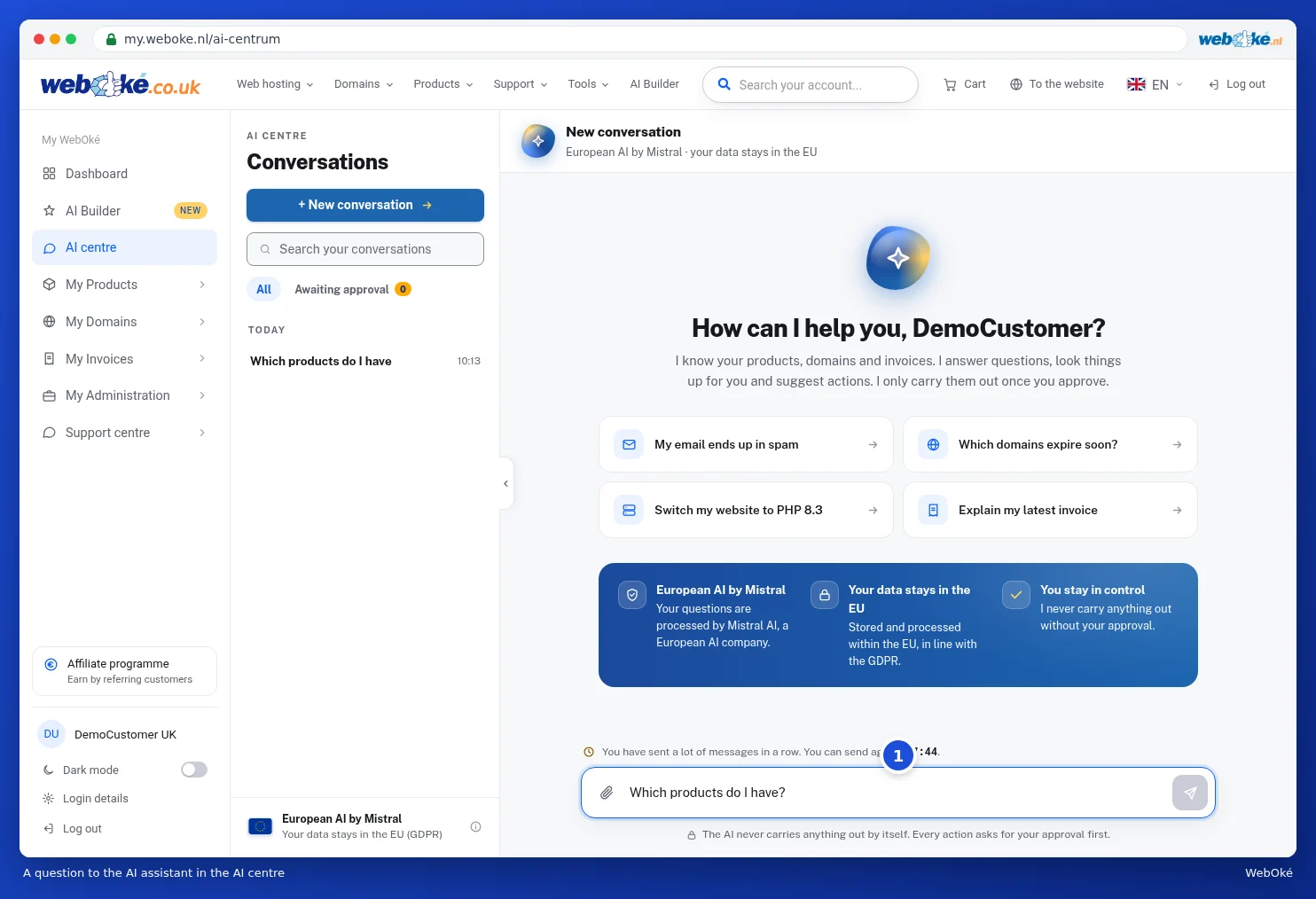
At the top right of a conversation are two buttons. The pencil lets you rename the conversation, and the bin lets you delete it. At the bottom is Create a support ticket from this conversation: the assistant then drafts a ticket, which you review before it goes to our support team.
What happens to your data?
At the bottom left of the AI centre, you can see how the assistant works: European AI by Mistral, Your data stays in the EU (GDPR). Click the i icon next to it for more explanation. The assistant only sees what belongs to your account and never carries out anything by itself.