
Chapter 2 · 2.4
Setting up notifications and emails about activity
Your Nextcloud lets you know when something happens that concerns you. For example, if someone shares a file with you, posts a comment, or invites you to an appointment. This happens in three ways:
- In your Nextcloud: the bell icon in the top right gets a red dot.
- By email: a message to the address in your profile.
- As a push notification: a notification on your phone, if you use the Nextcloud app.
Viewing your notifications
Click the bell icon. You'll see your notifications listed one below the other, with the newest at the top. Click a notification to go to it. Use the cross next to it to remove it, or Dismiss all notifications to clear everything.

Choosing what you get
- Click your profile picture and choose Settings.
- Click Notifications on the left.
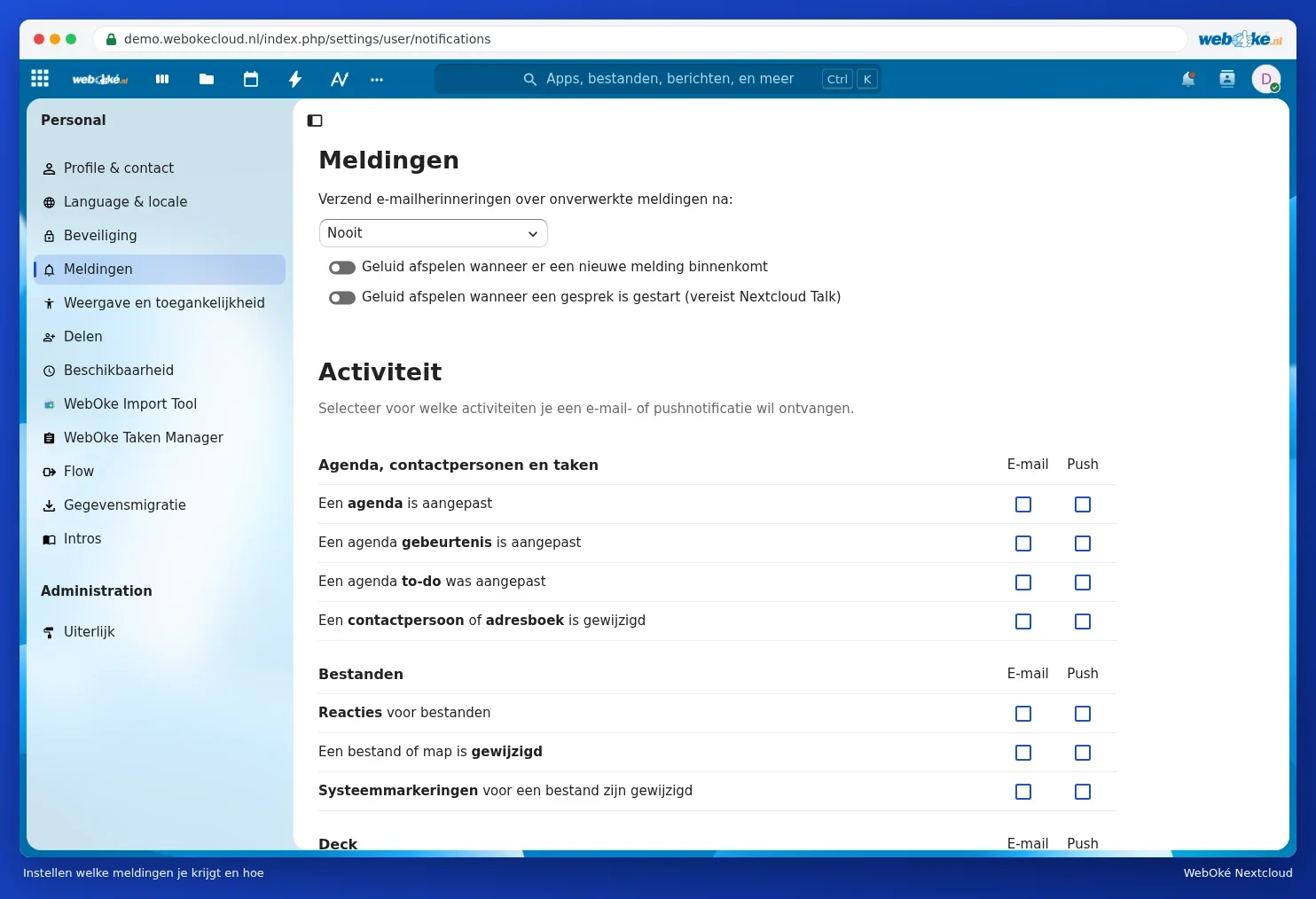
At the top, under Notifications, you set:
- Send email reminders for unread notifications after: if you haven't checked a notification for a while, you'll get an email about it. Choose after how much time, or Never.
- Whether you hear a sound for a new notification or when a conversation starts in Talk.
Below that, under Activity, you'll see a table. For each type of event, you can tick whether you want an Email, a Push notification on your phone, or both. For example:
- A file or folder has changed: useful for a folder you share with others, but it can generate a lot of emails.
- A calendar event has been modified: if someone moves a shared appointment.
- Notifications about Deck, Talk and Forms, if you use those apps.
Right at the bottom, you can turn on a Daily activity summary: then you'll get a single email each day with everything that happened, instead of separate emails.
Tip: Getting too much email? Turn off the checkboxes under Email and choose the daily summary instead. You won't miss anything, as everything still appears behind the bell icon and in the Activity app.