
Chapter 9 · 9.12
Calendar and contacts in Thunderbird
Thunderbird is a free, open-source mail program for Windows, Mac and Linux, with a built-in calendar and address book. You can connect it to your Nextcloud calendars, task lists and contacts. Anything you change in Thunderbird then also appears in your Nextcloud, and the other way round.
Please note: your usual password doesn't work here. Your WebOké Nextcloud asks for an extra code when logging in, and a calendar or contacts app can't fill that in. So use an app password instead: a separate password for one device or program. You'll find out how to create one in App passwords: when and how to use them; here's a quick summary below.
Step 1: create an app password
- Log in to your WebOké Nextcloud on your computer, click your profile photo in the top right and choose Settings.
- Click Security on the left and scroll to Devices & sessions.
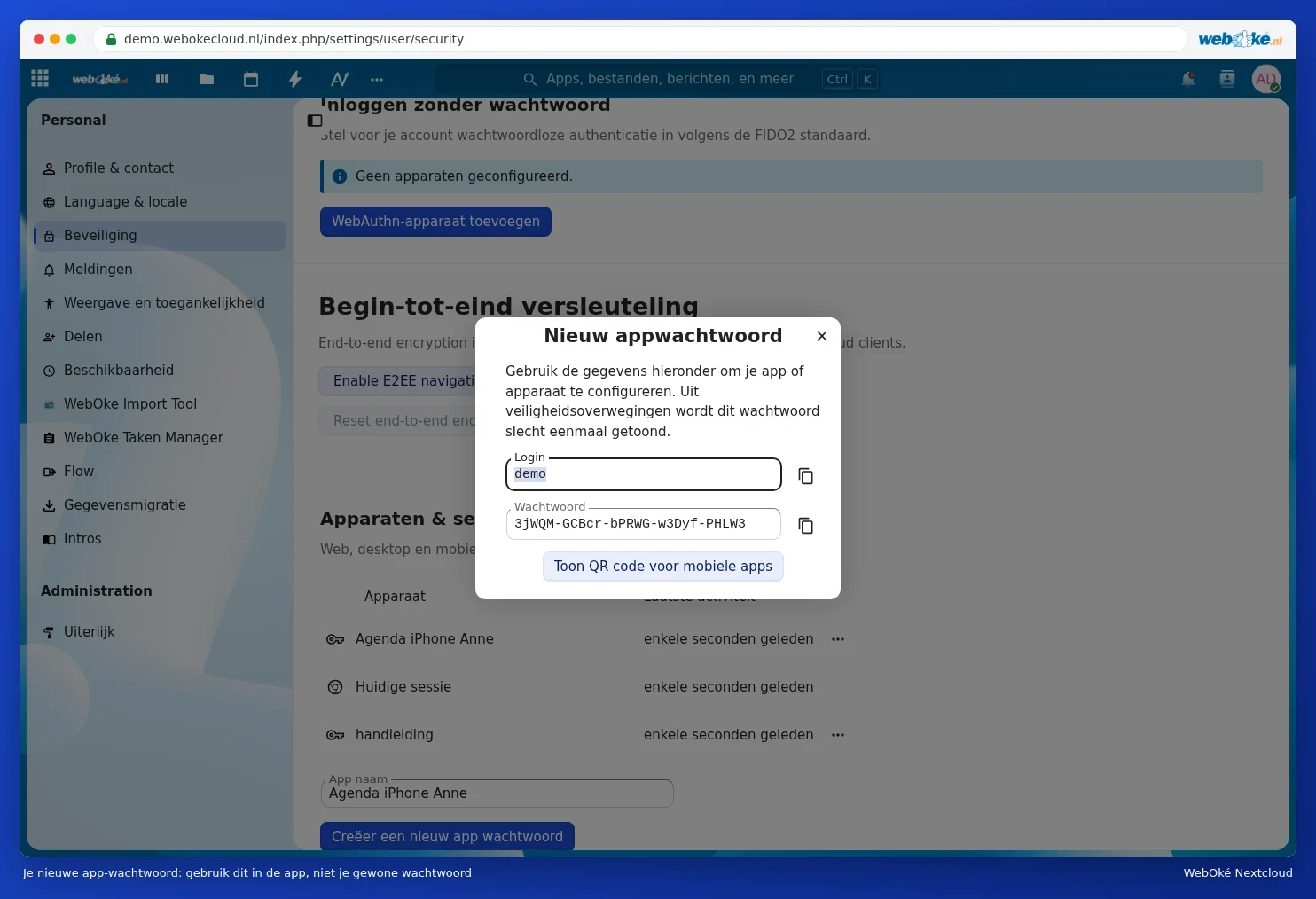
- Under App name, enter a recognisable name (1), for example Thunderbird, and click Create new app password (2). Your Nextcloud may ask for your usual password again.
- You'll now see your Login (your username) and a long Password. Leave this window open: you'll need it in a moment. The password is only shown once.

Step 2: add your calendar
- Open Thunderbird and click the Calendar icon on the left.
- Click New Calendar at the bottom left.
- Choose On the Network and click Next.
- Enter your username under Username and the address from the table below under Location.
- Click Find Calendars. Enter the app password when Thunderbird asks for a password, and tick the box to let Thunderbird remember it.
- Thunderbird shows all your Nextcloud calendars and task lists. Tick the ones you want to see and click Subscribe.
| Field in Thunderbird | What do you enter? |
|---|---|
| Username | Your username |
| Location | https://<your-address>/remote.php/dav |
| Password | The app password |
In this article, replace <your-address> with the address you use to open your Nextcloud in the browser (without https://), for example yourname.webokecloud.nl or cloud.yourcompany.com. Replace <username> with your username.
You'll find your task lists in Thunderbird under Tasks, the icon with the tick mark on the left.
Step 3: add your contacts
- Click the Address Book icon on the left.
- Click the arrow next to New Address Book and choose Add CardDAV Address Book.
- Enter your username and, under Location, the same address as for the calendar.
- Click Continue, enter the app password and choose the address books you want to add.
Your mail in Thunderbird
You add your mailbox separately in Thunderbird, using the email address and password for that mailbox. This has nothing to do with your Nextcloud. Want to read your mail in your Nextcloud? See Adding your mailbox to the Email app.
Tip: Thunderbird can send appointment invitations itself via your mailbox. If participants aren't receiving your invitations, or get them twice, read Appointment invitations that don't arrive.