
Chapter 3 · 3.3
Recovery codes, and what to do if you've lost your authenticator
Recovery codes (back-up codes) are spare codes for when you don't have your authenticator app to hand, for example because your phone is broken, lost or has no battery. Each code works only once. Create them as soon as you've enabled Two-Step Authentication (see Setting up Two-Step Authentication).
Creating recovery codes
- Go to your Profile and click the Two-Step Authentication tab.
- Scroll to Recovery Codes (1).
- Click Add Codes (2).
- Save the codes somewhere safe straight away.
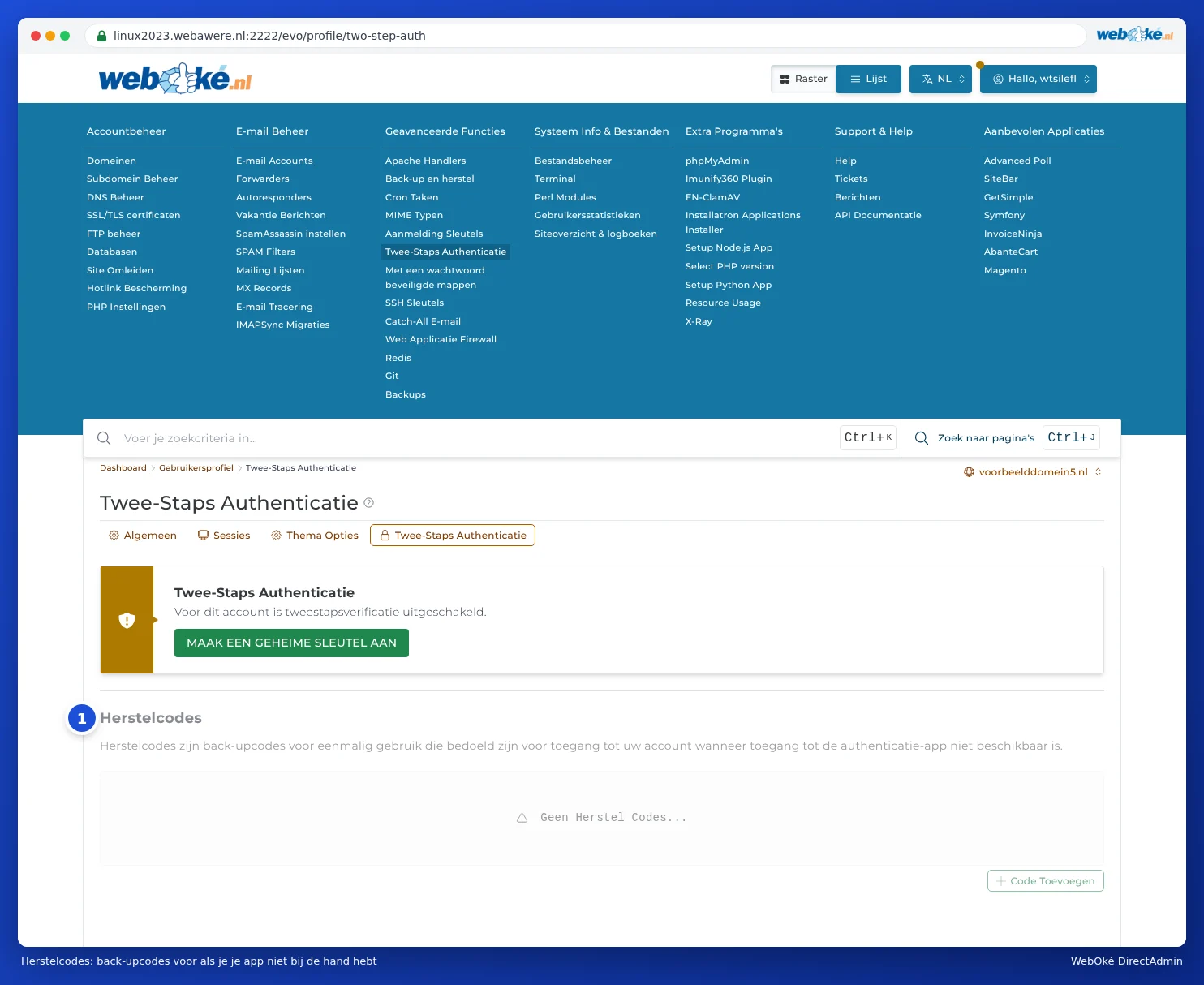
As long as Two-Step Authentication is switched off, the block is greyed out and you can't create codes yet. It then shows No Recovery Codes....
Where should you keep your recovery codes?
- In your password manager, with your DirectAdmin entry.
- On paper, somewhere you keep other important documents.
- Not only on the same phone as your authenticator app: if you lose it, you lose the codes too.
Logging in with a recovery code
If DirectAdmin asks for the code from your app when you log in, type one of your recovery codes instead of the code from the app. Then cross that code off: it only works once. After that, set up Two-Step Authentication again as soon as possible with your new phone, and create new recovery codes.
Lost your authenticator and have no recovery codes?
Don't panic. Try the following, in this order:
- Log in via My WebOké. Go to My Products and click DirectAdmin next to your package (see Signing in via My WebOké). If you can get in this way, go to Profile and the Two-Step Authentication tab, and set it up again with your new phone.
- Restore your old account. If you used an app with a cloud back-up (such as Microsoft Authenticator, Authy or a password manager), install the app on your new phone and log in: your codes will often come back automatically.
- Submit a ticket. If that doesn't work, submit a ticket in My WebOké via Support centre and Submit a ticket. Let us know which package it concerns. We can switch off Two-Step Authentication for you, so you can set it up again afterwards. Because your ticket comes from your own My WebOké account, we know the request genuinely comes from you.
Please note: Never ask for this by regular email or phone without being logged in to My WebOké. This way, we prevent someone else from pretending to be you.