
Chapter 10 · 10.2
IMAPSync Migrations in DirectAdmin
With IMAPSync Migrations you can copy mail from a mailbox with another provider to a mailbox in your package in DirectAdmin. DirectAdmin logs in to the old mail server using IMAP and transfers all folders and messages. Your old mailbox remains unchanged.
Tip: Moving from Outlook.com, Hotmail, Live or Microsoft 365? Use E-mail verhuizen in My WebOké (see Migrating email via My WebOké). Microsoft no longer accepts a password for retrieving mail, and IMAPSync in DirectAdmin only works with a password.
Before you start
- The mailbox at WebOké must already exist (see Creating an e-mail address) and have enough storage.
- You'll need the IMAP server, e-mail address and password of the old mailbox.
- For Gmail, you'll need an app password instead of your normal password (see Migrating email via My WebOké).
Starting a migration
- In the menu, under E-mail Manager, click IMAPSync Migrations. You'll see the list of running migrations.
- Click IMPORT E-MAILS (1).
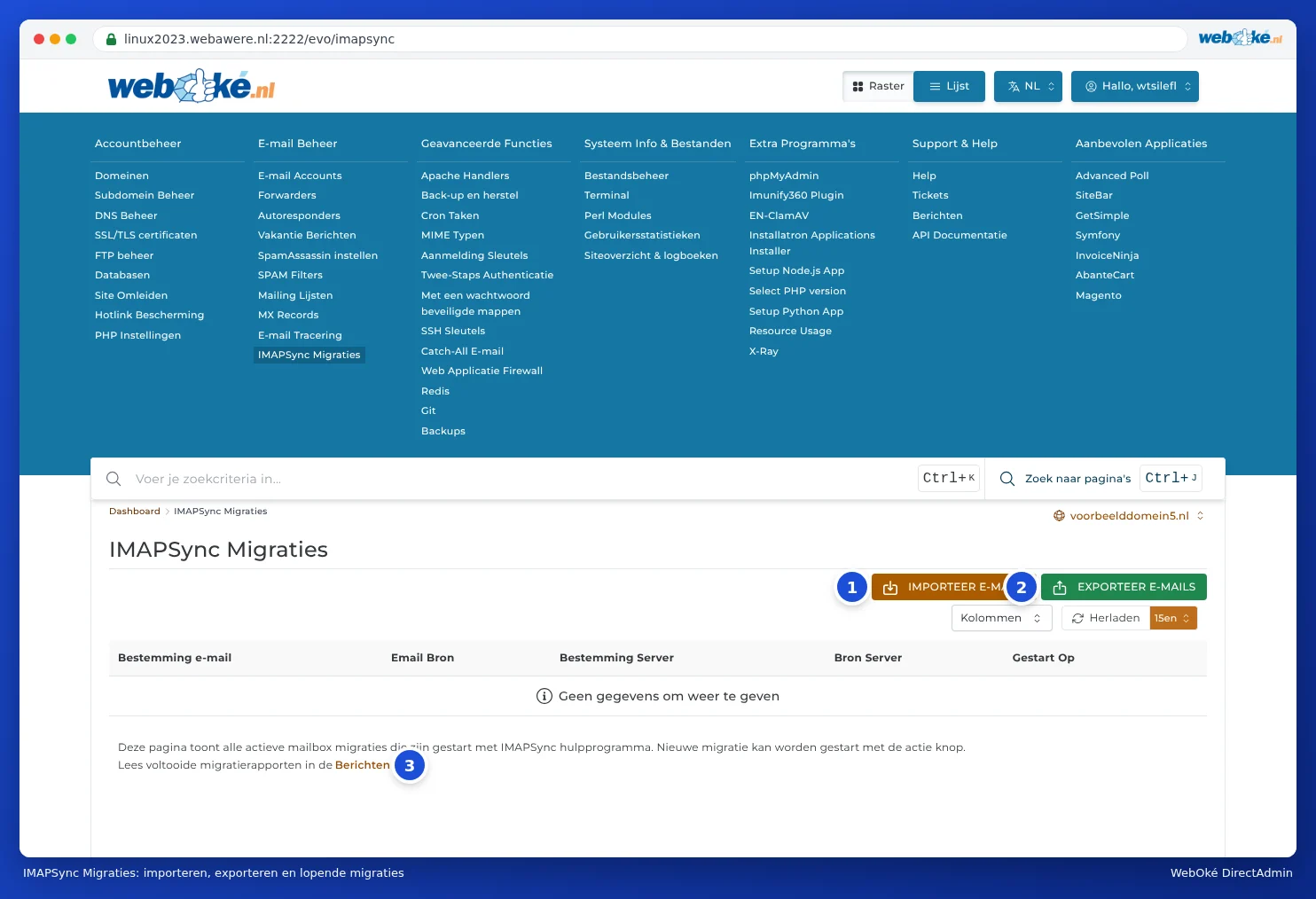
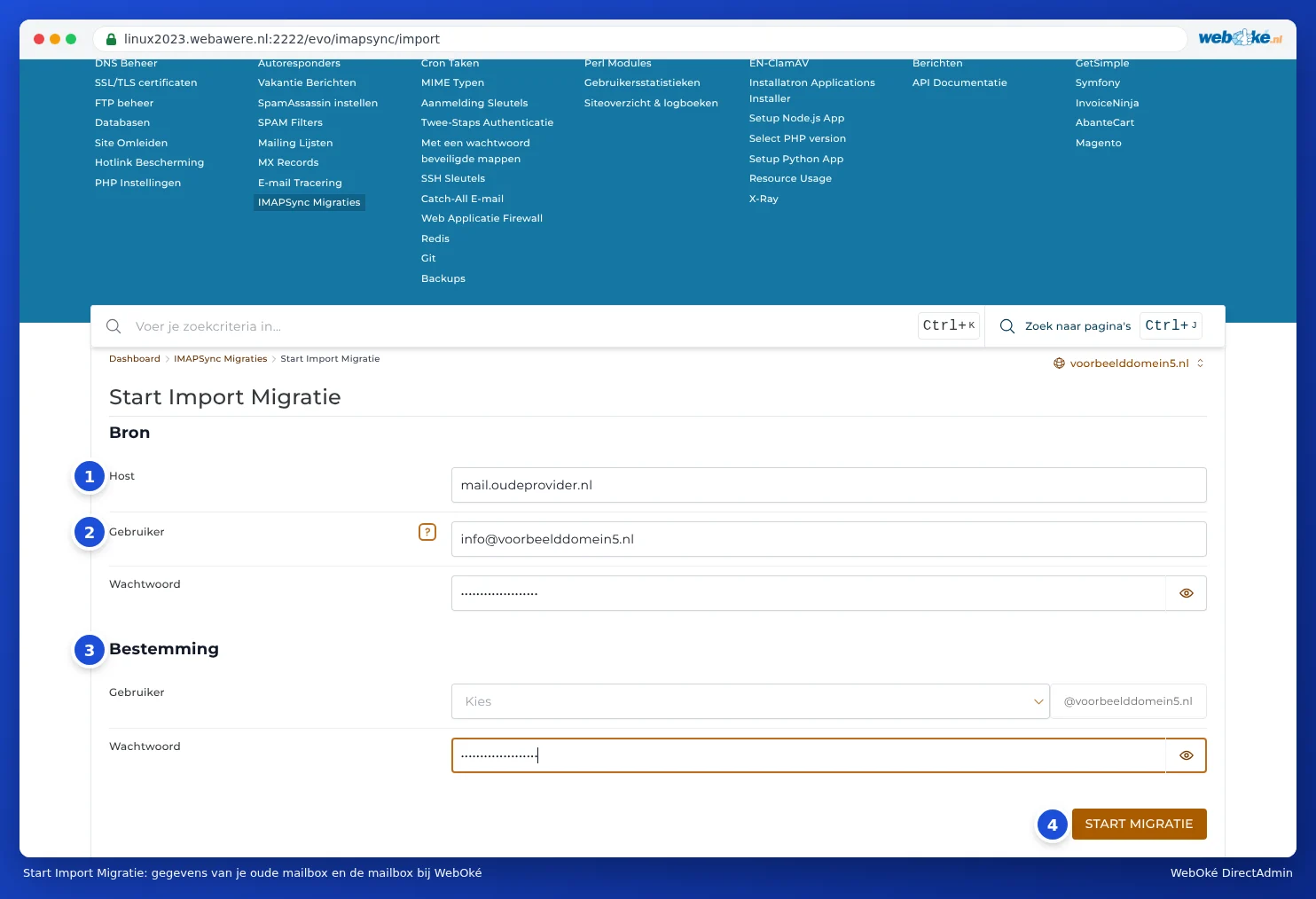
You'll arrive at Start Import Migration. Fill in:
- Under Source, Host (1): the IMAP server of your old provider, for example imap.gmail.com.
- Under User (2): the username of your old mailbox. This is usually the full e-mail address.
- Under Password: the password (or app password) of your old mailbox.
- Under Destination (3), User: choose the mailbox in your package where the mail should go.
- Under Password: the password of that mailbox at WebOké.
- Click START MIGRATION (4).
The migration then runs in the background. You'll see it in the list on the IMAPSync Migrations page while it's running. Once it's finished, you'll find the report under Message Area (top right, under your username, or via the link below the list). A large mailbox can take hours.
Known IMAP servers
| Provider | IMAP server | Note |
|---|---|---|
| Gmail and Google Workspace | imap.gmail.com | App password required. |
| Ziggo | imap.ziggo.nl | |
| KPN | imap.kpnmail.nl | |
| TransIP | imap.transip.email | |
| Strato | imap.strato.com | |
| Outlook, Hotmail, Live, Microsoft 365 | outlook.office365.com | Doesn't work with a password. Use Migrating email via My WebOké. |
If your provider isn't listed, check its help pages for the IMAP settings. If you're coming from another hosting provider, the server is often mail.yourdomain.com. Does your domain already point to WebOké? Then use the server name or IP address of your old provider, since mail.yourdomain.com will already point to us.
Exporting mail to another server
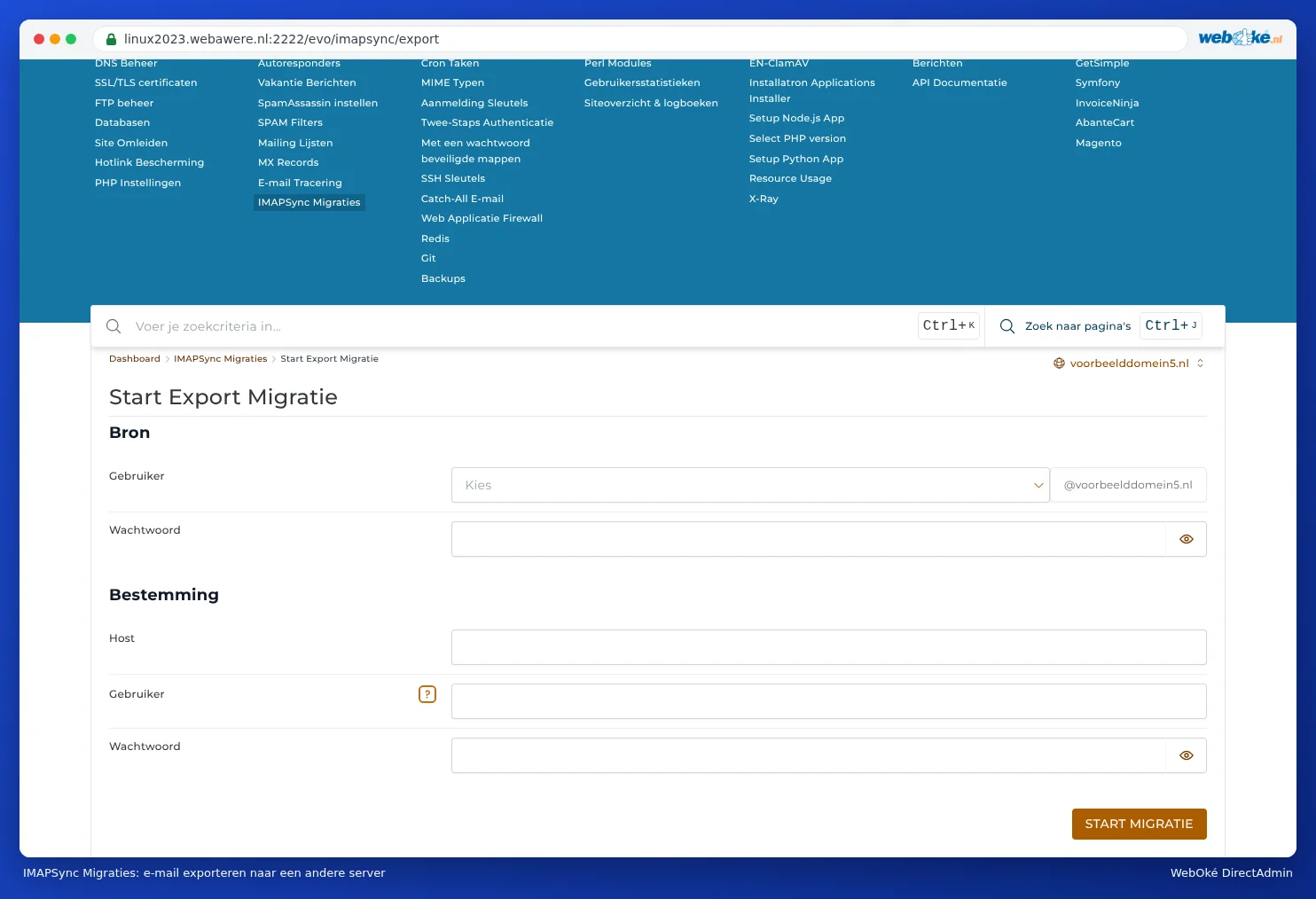
With EXPORT E-MAILS (2), it works the other way round: you copy the mail from a mailbox in your package to a mailbox on another server. You then fill in the details of your mailbox at WebOké and of the mailbox on the other server.
Frequently asked questions
Can I run the migration again? Yes. Messages that have already been copied are skipped. So feel free to run it again right after you've changed your MX records.
The migration stops halfway through. This is usually because the mailbox at WebOké is full. Increase the mailbox's storage (see Storage per mailbox and what happens when it's full) and start again. Also check the report under Message Area to see what went wrong.
I get an error logging in to the old server. Check the password and server name, and whether your old provider allows IMAP. For Gmail, you need to use an app password.
Will my contacts and calendar come across too? No. IMAP only copies e-mail. Export contacts and your calendar separately from your old mail program or webmail.