
Chapter 3 · 3.5
Login Keys: logging in for scripts and programs
With Login Keys you create extra passwords for your DirectAdmin account. The difference with your normal password: a key can expire automatically, may only do certain things and can even be limited to certain IP addresses. You can also create a login link that logs someone into your DirectAdmin without a password.
What do you use this for?
- A script or program that needs to do something in your package via the DirectAdmin API, for example updating a DNS record. Give the script a key that may only do that one thing, instead of your real password.
- Temporary access for your web developer, with an expiry date, so access automatically stops once the job is done.
Tip: Does your web developer only need access to your website files? Then give them their own FTP account for that one folder (see Creating and managing FTP accounts). This is safer and easier than access to the whole of DirectAdmin.
Opening Login Keys
- Click Hello, followed by your username in the top right, and choose Login Keys. You'll also find it in the menu under Advanced Features.
- You'll see two tabs: Login Keys and Login URLs (3). At the top are the buttons CREATE KEY (1) and CREATE URL (2).

The table shows, for each key, its name, which commands are allowed and denied, which networks it works from, when it expires and when and by whom it was created.
Creating a key
You'll need your current DA password for this. Do you always log in via Mijn WebOké and don't know it? Then set it first (see Setting or changing your DA password).
- Click CREATE KEY.
- Under Key Name (1), enter a recognisable name using only letters and numbers, for example webdeveloper or dnsscript. This is a label for yourself, not the username you log in with.
- Under Key value (2) is the key itself: the extra password. Use a long, random value.
- Under Expires On (3), tick Has expiry date and choose a date. Without the tick, the key never expires. With Delete Key, the key is automatically removed once it expires.
- Allow HTM (4): tick this if the key may also log in to the DirectAdmin website. Without the tick, the key only works for the API, so for scripts.
- Under Commands (5), choose for each command whether it's allowed or denied. If you choose nothing, all commands are allowed.

- At the bottom, under IP addresses (1), use Add Network to specify which IP addresses the key works from. If you add nothing, it works from any IP address.
- Enter your DA password under Current Password (2) and click CREATE (3).

Please note: Write down the key value straight away. Keys, like passwords, are stored encrypted: you can't retrieve them later. If you lose it, delete the key and create a new one.
Logging in with a key
With a key you log in using your normal DA username, with the key value as your password. A script uses the same combination for the DirectAdmin API (see API Documentation under Support & Help).
Which commands should you exclude?
Give a key as few permissions as needed. For a script, only choose the commands it actually uses. Be especially careful with these three:
- ALL_USER: all commands of your account, so just as much access as your normal password;
- CMD_LOGIN_KEYS and CMD_API_LOGIN_KEYS: these allow the key itself to create new keys, with more permissions.
Also exclude CMD_PASSWD and CMD_API_PASSWD, so the key can't change your password.
Creating a login link
With CREATE URL you create a link that logs someone directly into your DirectAdmin, without a password.
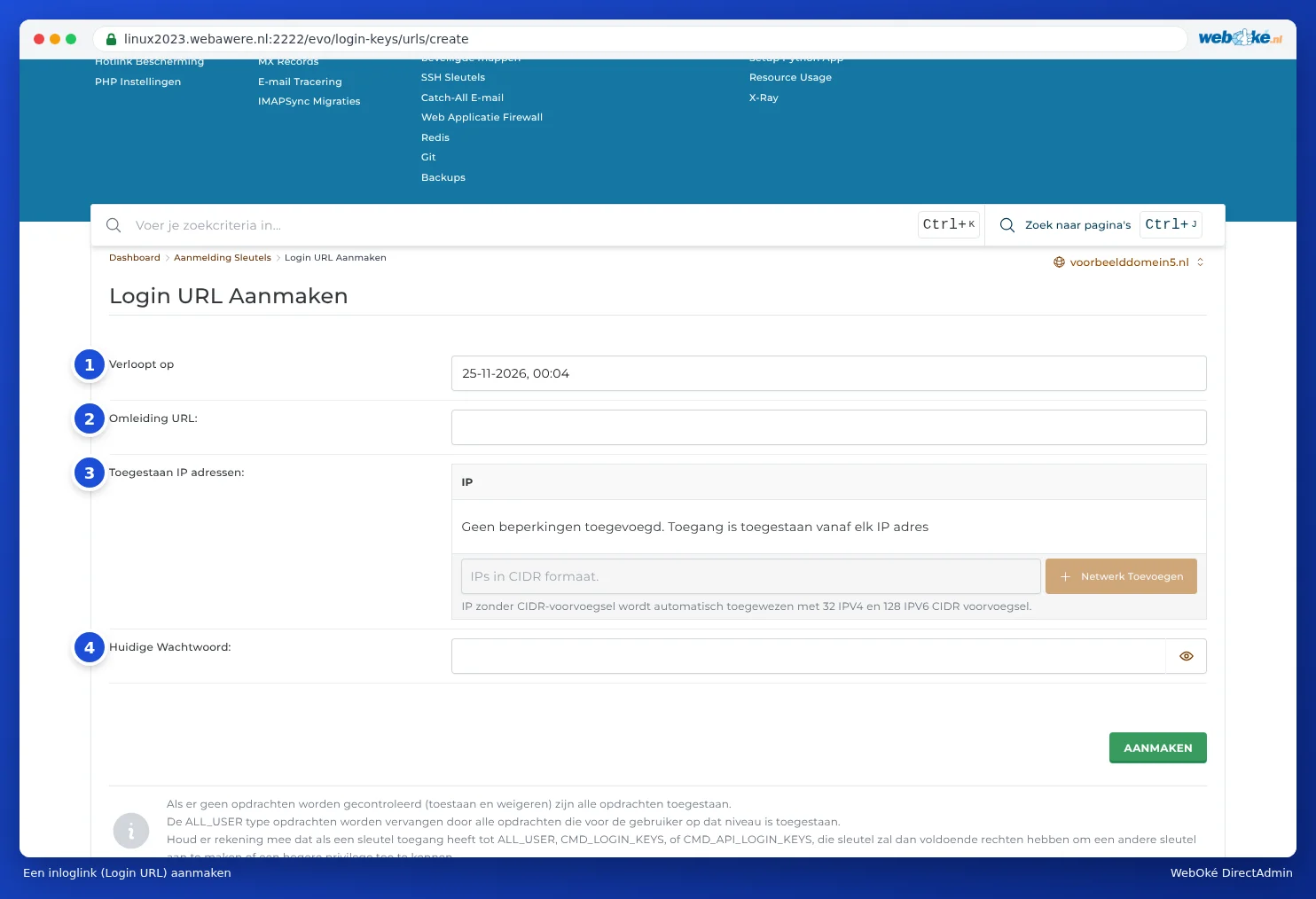
- Expires On (1): choose a short validity period, for example one day.
- Redirect URL (2): the page the link leads to. Leave empty for the dashboard.
- IP addresses (3): restrict the link to the IP address of whoever will use it.
- Enter your Current Password (4) and click CREATE.
The DirectAdmin button in Mijn WebOké works in the same way: it creates a one-time login link each time, valid for 60 minutes. That's why your sessions show Login Key when you've logged in via Mijn WebOké (see Logging out and closing safely).
Deleting a key
Delete a key as soon as it's no longer needed, for example when your web developer has finished the job. You do this in the table on the Login Keys page, next to the key itself. Also check from time to time for any keys you don't recognise.