
Chapter 10 · 10.7
Euro-Office in the Nextcloud app on your phone or tablet
You can access your documents on the go too. With the free Nextcloud app on your phone or tablet, you can view and edit your files, and automatically upload your photos, for example.

Installing the app
| Device | Where |
|---|---|
| iPhone and iPad | App store |
| Android | Google Play or F-Droid |
All the links are also on www.weboke.nl/download. Choose the app simply called Nextcloud, with the blue logo featuring three circles.
Logging in
- Open the app and tap Log in.
- Enter the address of your Nextcloud, for example https://demo.webokecloud.nl.
- The login screen of your WebOké Nextcloud opens. Log in with your username and password, and enter the two factor authentication code if prompted.
- Grant the app access. The app automatically creates an app password; you'll then see your phone listed under Devices & sessions (see Linking the program to your WebOké Nextcloud).
You'll find detailed instructions with screenshots in our knowledge base: Setting up the Nextcloud app on iPhone and Setting up the Nextcloud app on Android.
Opening and editing a document
In the app, tap a document, spreadsheet or presentation. The app opens it in Euro-Office, the editor in your WebOké Nextcloud, in a view suited to a small screen. You can read, type, view comments and collaborate with colleagues. Your changes are saved straight to your Nextcloud.
Or just use your phone's browser
You can also work without the app: open the browser on your phone (Safari, Chrome or another), go to the address of your Nextcloud and log in. You'll see your files in a view designed for your phone. Tap a document and it opens in Euro-Office, initially for reading. Tap the pencil in the bottom right corner (1) to start editing.
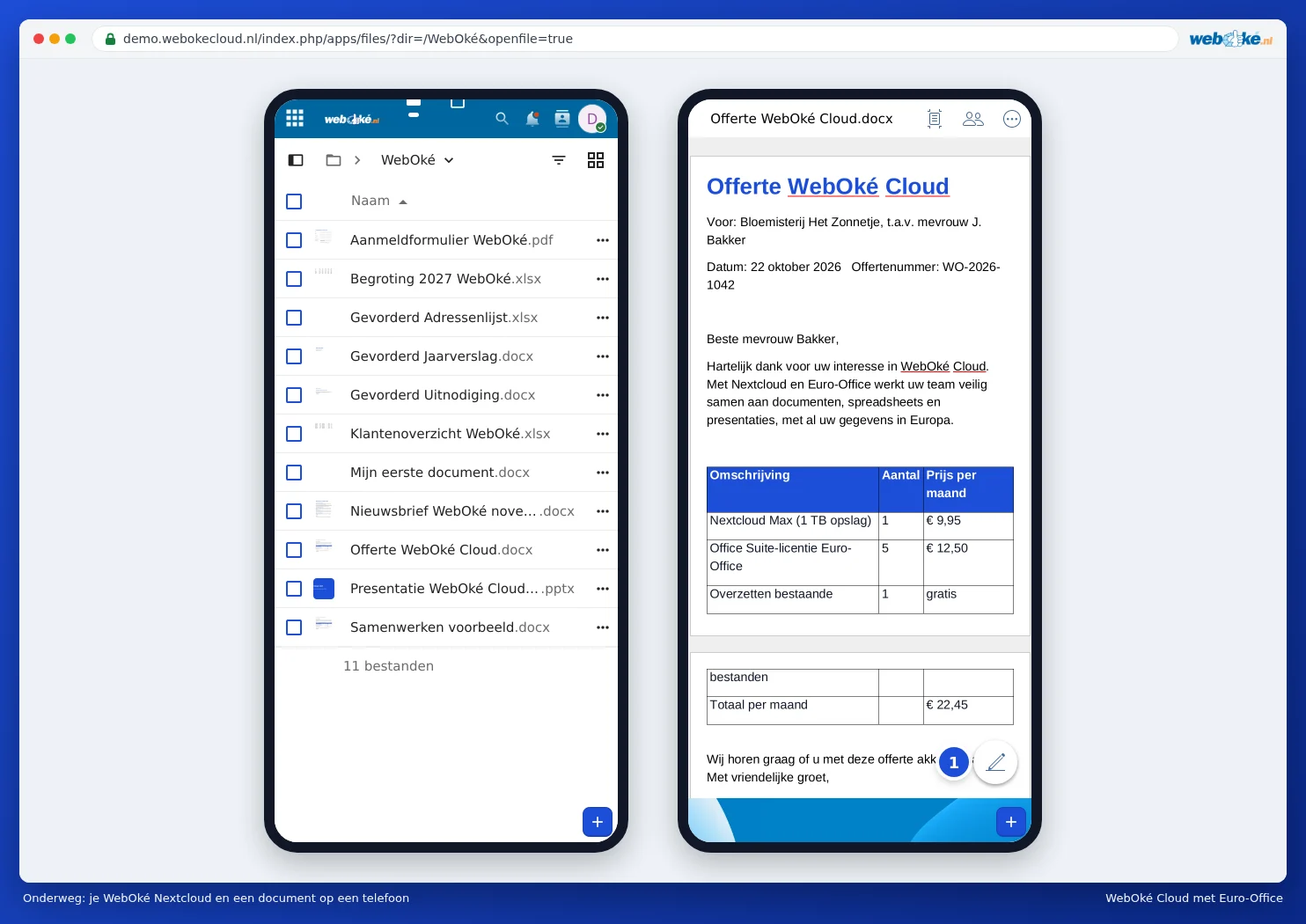
Tip: a phone screen is small. That's fine for a quick read through or a small change. For bigger tasks, such as formatting a long text or building a large spreadsheet, you'll find it easier to work on a computer or tablet.
Note: lost your phone? In your Nextcloud, revoke that device's access via Settings, Protection and Devices & sessions. See Linking the program to your WebOké Nextcloud.