
Chapter 8 · 8.3
Commenting and mentioning someone
Watch it in a short video
With a comment, you can add a question or note to a piece of text without changing the text itself. Ideal for giving feedback or asking a colleague something.
Adding a comment
- Select the text the comment is about.
- Go to the Collaboration tab and click Add Comment (1). You can also right-click the text and choose Add Comment.
- Type your comment in the box and click Add (2).
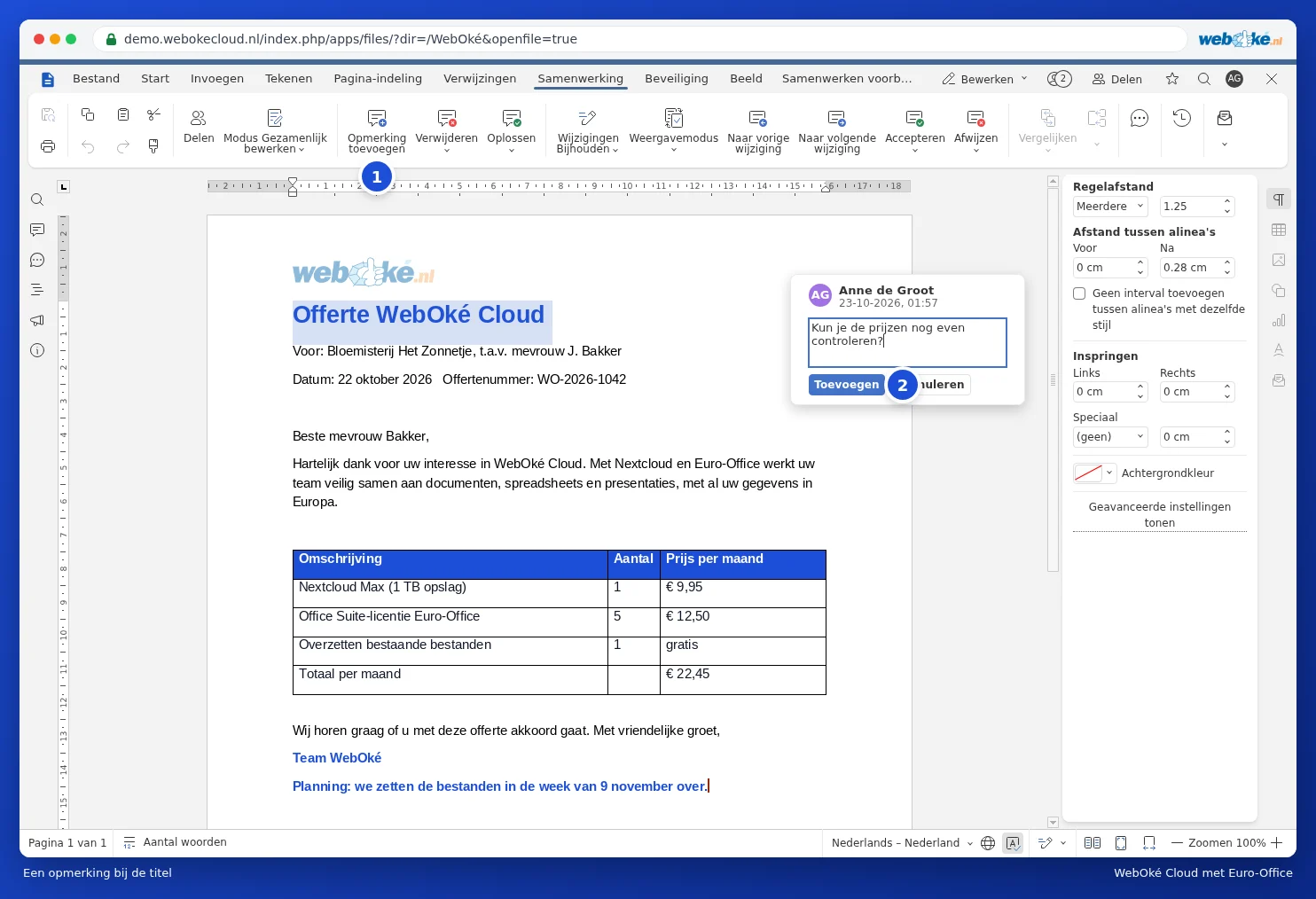
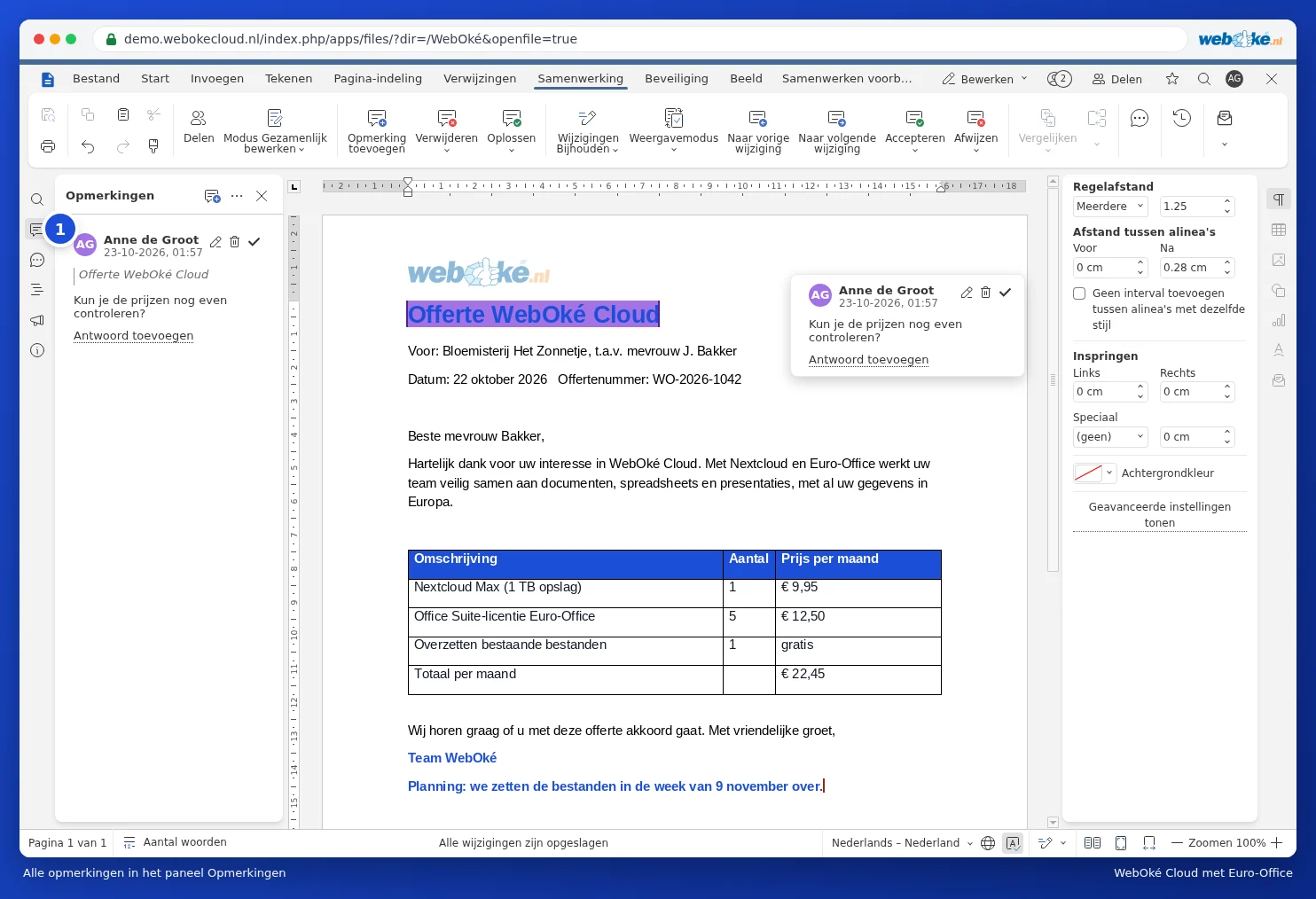
The text with a comment gets a coloured background. Click it to read the comment. You can see all the comments together in the Comments panel: click the speech bubble button on the left (1).
Mentioning someone with @
Want a colleague to see your comment? Click Add Comment (1) and type an @ followed by the first letters of their name in the comment. Choose your colleague from the list (2). Once you've added the comment, your colleague receives a notification, so they know there's a question waiting.

Please note: if you mention someone who doesn't yet have access to the document, Euro-Office warns you that the mention will give that person access to the document. So just check that this is what you intend.
Replying and resolving
- Click Add reply in a comment to respond. This creates a conversation around the text.
- Has the point been dealt with? Click Resolve. The comment is kept but no longer stands out.
- Use the Resolve button on the Collaboration tab to resolve all your own comments or all comments at once.
- Use the Delete button on the Collaboration tab to choose Delete current comments, Delete my comments, or Delete all comments.
Tip: sending the document to a client? Delete all comments first, or send a PDF instead (see Printing and saving as PDF).