
Chapter 10 · 10.1
Euro-Office as a program on your computer: what is it and when do you use it?
Euro-Office simply works in your browser: you open a document in your WebOké Nextcloud and get started. Would you rather work with a program on your computer, just like with Word, Excel or PowerPoint? Then install the free program Nextcloud Office. That's Euro-Office as a program for Windows, Mac and Linux, made by Nextcloud.
What can you do with it?
- Open, create and edit documents (docx), spreadsheets (xlsx), presentations (pptx) and PDFs. Older formats such as doc, xls and ppt and LibreOffice formats (odt, ods, odp) also open fine.
- Edit files on your own computer, even when you don't have internet access for a while, for example on a train.
- Connect the program to your WebOké Nextcloud. Then you open your files from the cloud directly in the program and work together with colleagues who are working in the browser. See Linking the program to your WebOké Nextcloud and Working together with colleagues in the browser and the program.
The buttons and menus are the same as in the browser. So everything you read in this manual about text documents, spreadsheets, presentations and PDFs also applies to the program.
Where do you download it?
Our download page www.weboke.nl/download brings together all apps and programs for your WebOké Nextcloud: Nextcloud Office (1), the synchronisation app Nextcloud Files (2), and the Nextcloud app for your phone and tablet (3). Our buttons always point to the latest version, and you download directly from the maker, from download.nextcloud.com.

The program is also available on Nextcloud's official page: nextcloud.com/install, under Download for desktop and then Nextcloud Office.
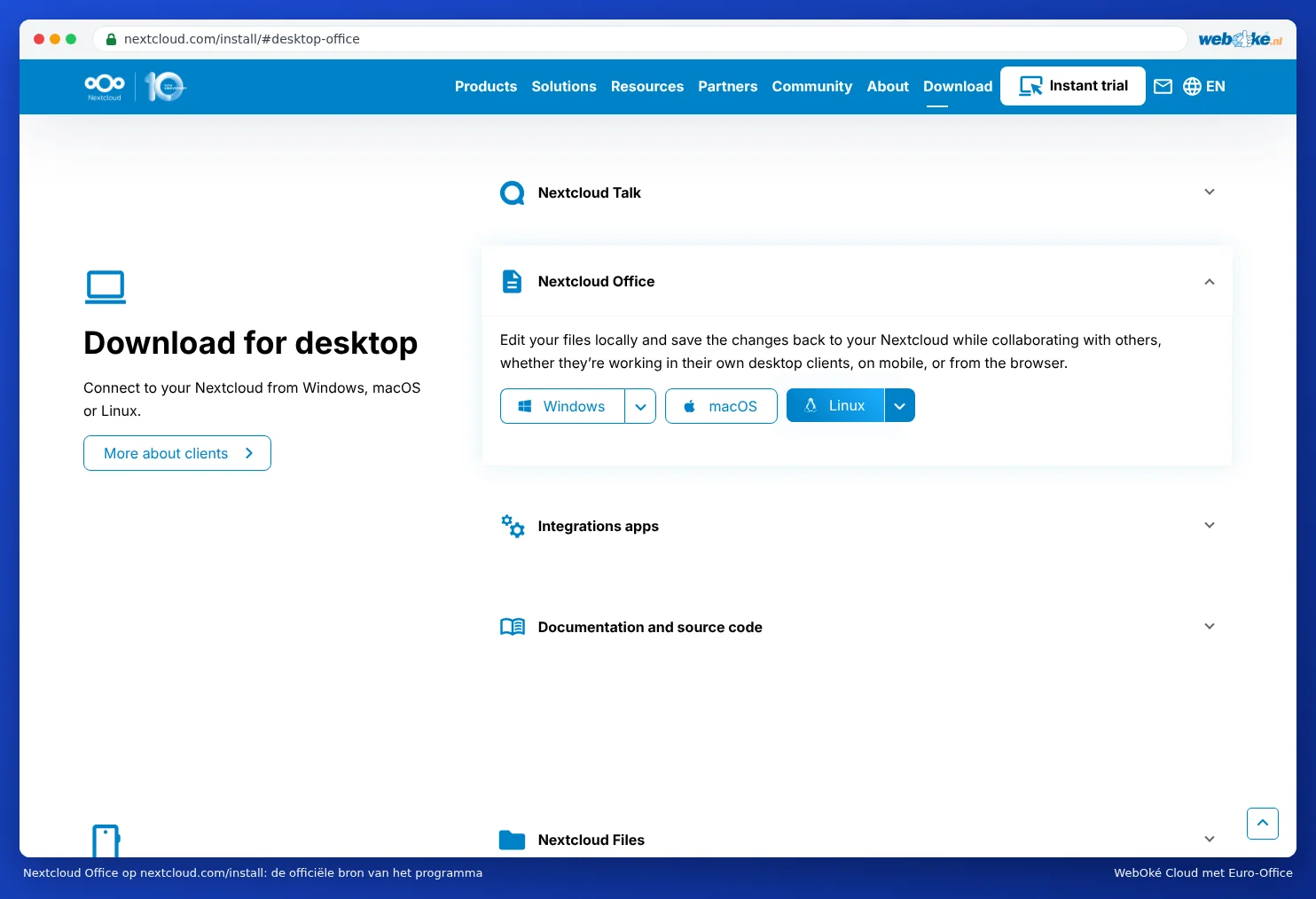
Which computers are supported?
| Computer | Version | Download |
|---|---|---|
| Windows, regular PC or laptop (Intel or AMD) | Windows x64 | Windows x64 |
| Windows with an ARM processor (for example a Copilot+ PC with Snapdragon) | Windows ARM64 | Windows ARM64 |
| Mac with Apple Silicon (M1 and newer) | macOS | macOS (Apple Silicon) |
| Linux: Ubuntu, Debian, Linux Mint | .deb | Linux .deb |
| Linux: Fedora and similar | .rpm | Linux .rpm |
A Mac with an Intel processor isn't supported. On such a Mac, you simply work in the browser.
Browser or program: which do you choose?
| In the browser | Nextcloud Office program | |
|---|---|---|
| Installation | Not needed | Once, per computer |
| Works without internet | No | Yes, for files on your computer |
| Working together with colleagues | Yes | Yes, if you open the file from your connected Nextcloud |
| Phone and tablet | Yes, in the browser or the Nextcloud app | No |
| Updates | Automatic, by WebOké | The program notifies you of a new version itself |
Tip: not sure? Start in the browser. That works on any computer and you don't need to install anything. The program is especially handy if you often work without internet or prefer a separate window.