
Creating a cron job or task (and what to do if it isn't running)
With a cronjob (in DirectAdmin: Cron Jobs) you let a script run automatically at fixed times, for example every night. Below you'll read how to create one and what to do if it doesn't work.
Rules for cronjobs
- With Webhost One and Webhost Two, a task may start at most once every 10 minutes, for all your tasks combined.
- With the Power Webhost packages, tasks may run more often.
- Spread multiple cronjobs over time and choose a quiet moment, such as 03:17 instead of exactly midnight.
- Heavy cronjobs that burden the server for a long time are not allowed. More websites run on the same server. If necessary, we'll stop a cronjob. So keep your tasks short and don't run them more often than needed.
Creating a cronjob
- Log in to DirectAdmin and under Advanced Features click Cron Jobs.
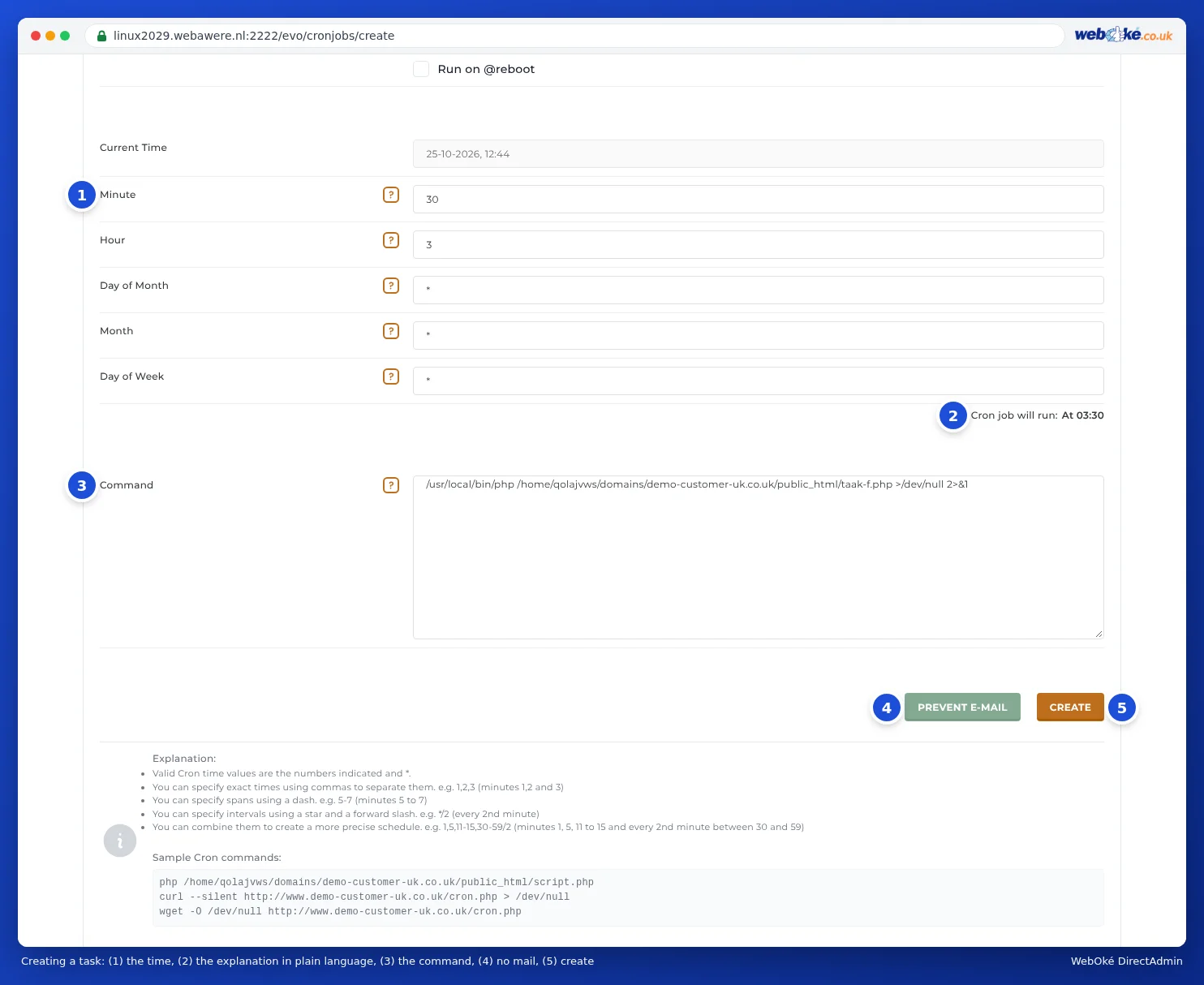
- Click Create Cron Job.
- Fill in the minute, hour, day, month, and day of the week. Always fill in the minute with a number, not an asterisk, otherwise the task runs every minute.
- For the command, enter the full path, for example:
/usr/local/bin/php -q /home/gebruiker/domains/jouwdomein.nl/public_html/taak.php
Replace gebruiker with your DA username. - Click Create.
Email after each cronjob
The output of a cronjob goes to the default email account of your package, see The default email account in DirectAdmin. You can also send the output to your own address with Send All Cron Output to Email. If you don't want email, click Prevent Email when creating it, or add this after the command:
>/dev/null 2>&1
Watch out with PHP scripts
A script that runs from a cronjob doesn't know under which domain it's running. $_SERVER['SERVER_NAME'] and $_SERVER['DOCUMENT_ROOT'] are empty, and an include with a relative path can fail. So add this at the top of your script:
$pad = '/home/gebruiker/domains/jouwdomein.nl/public_html';
$_SERVER['SERVER_NAME'] = 'jouwdomein.nl';
$_SERVER['DOCUMENT_ROOT'] = $pad;
set_include_path($pad . PATH_SEPARATOR . get_include_path());
Is your cronjob not running?
Go through these points one by one:
- Read the output. Temporarily remove
>/dev/null 2>&1and check the email in the default email account, or set up your own address. This often shows exactly what's going wrong. You can also write the output to a log file by adding>> /home/gebruiker/cron-log.txt 2>&1after the command. - Check the path. The message Could not open input file means the path to the script is incorrect. Check in File Manager: the path starts with
/home/gebruiker/domains/. - Check the PHP version. With
/usr/local/bin/php, the task uses the same PHP version as your website. If your script only works on a different version, adjust it under Select PHP version. - Test the command manually. If you have a package with Terminal, paste the command there and see what happens, see Opening SSH or Terminal in DirectAdmin. Without Terminal, open the script in your browser, or call it in the cronjob via
curl --silent https://www.jouwdomein.nl/taak.php. - Check the permissions. The script must be readable: files should be set to 644 and folders to 755. See Permissions of files and folders (chmod).
- Check the timing. Look under Cronjob is executed: to see if the task runs when you think it does. If there's an asterisk for the minute, it runs every minute and may be stopped.
- Check the package limit. If the task runs more often than your package allows, or takes too long, it will be cancelled. Spread the work over multiple rounds instead.
date >> /home/gebruiker/cron-log.txt; before your command.See also in the DirectAdmin manual: The default email account of your package.
Detailed explanation with screenshots: Cron Jobs: letting tasks run automatically in the DirectAdmin manual.